N8N - User Guide
Factori People data enrichment community node for n8n enables users to enrich People data at scale directly within their n8n automation workflows.
By integrating Factori's data enrichment capabilities into n8n, teams can apply multi-dimensional filters and generate structured output, either as individual records or in bulk, without writing custom code.
Installing the People Data Enrichment Community Node
Step 1 - Open Community Node Settings
- Log in to your n8n account
- Navigate to Settings from the left-hand sidebar
- Select Community Nodes
Step 2 - Install the Factori node
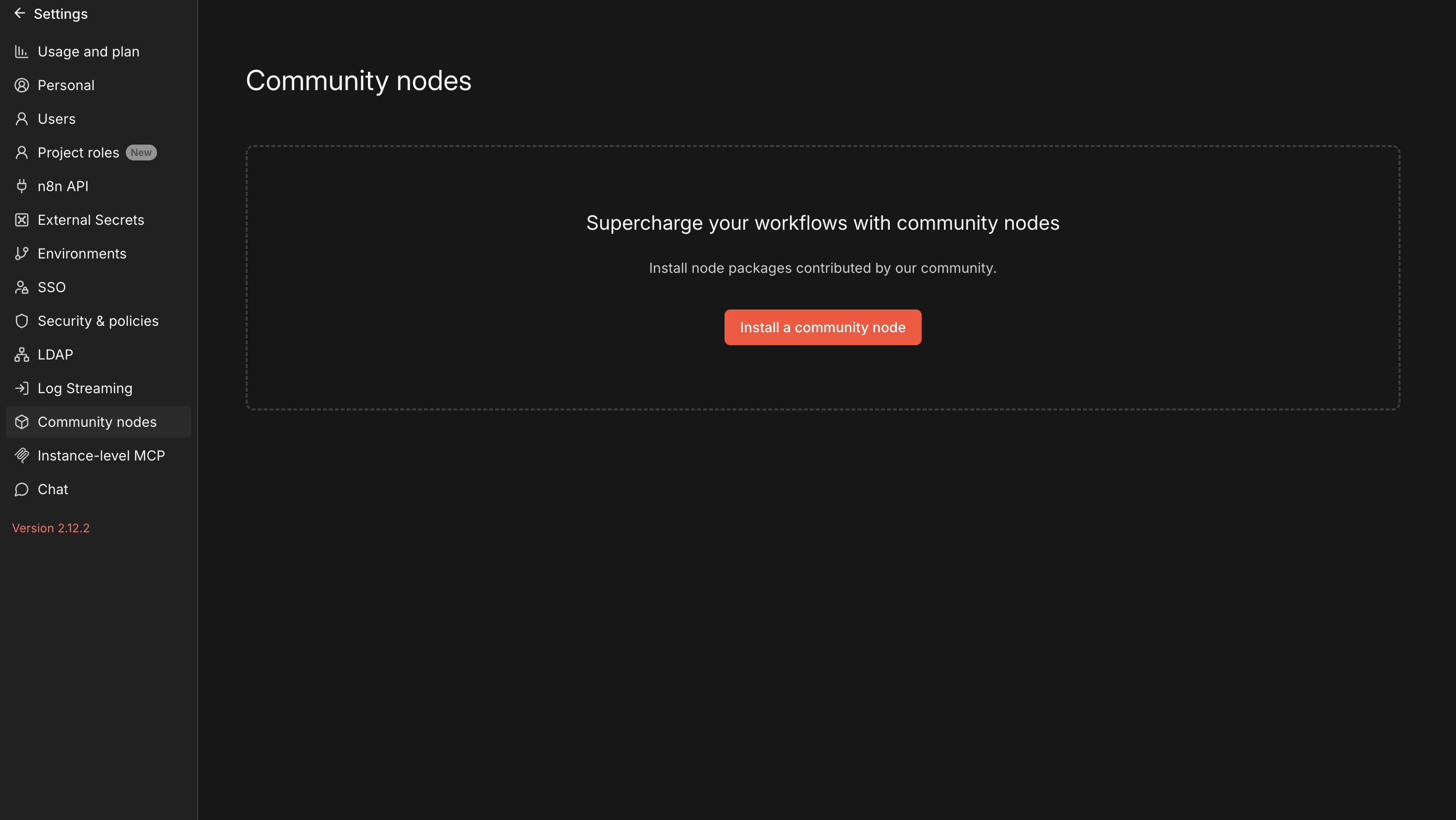
- Click Install on the Community Nodes page.
- In the search field, enter n8n-nodes-factori (the official Factori community node package name).
- Click Install and wait for the installation to complete.
- Once successfully installed, the Factori People data enrichment node will appear in the confirmation list.
Step 3- Verify the Node in the Gallery
-
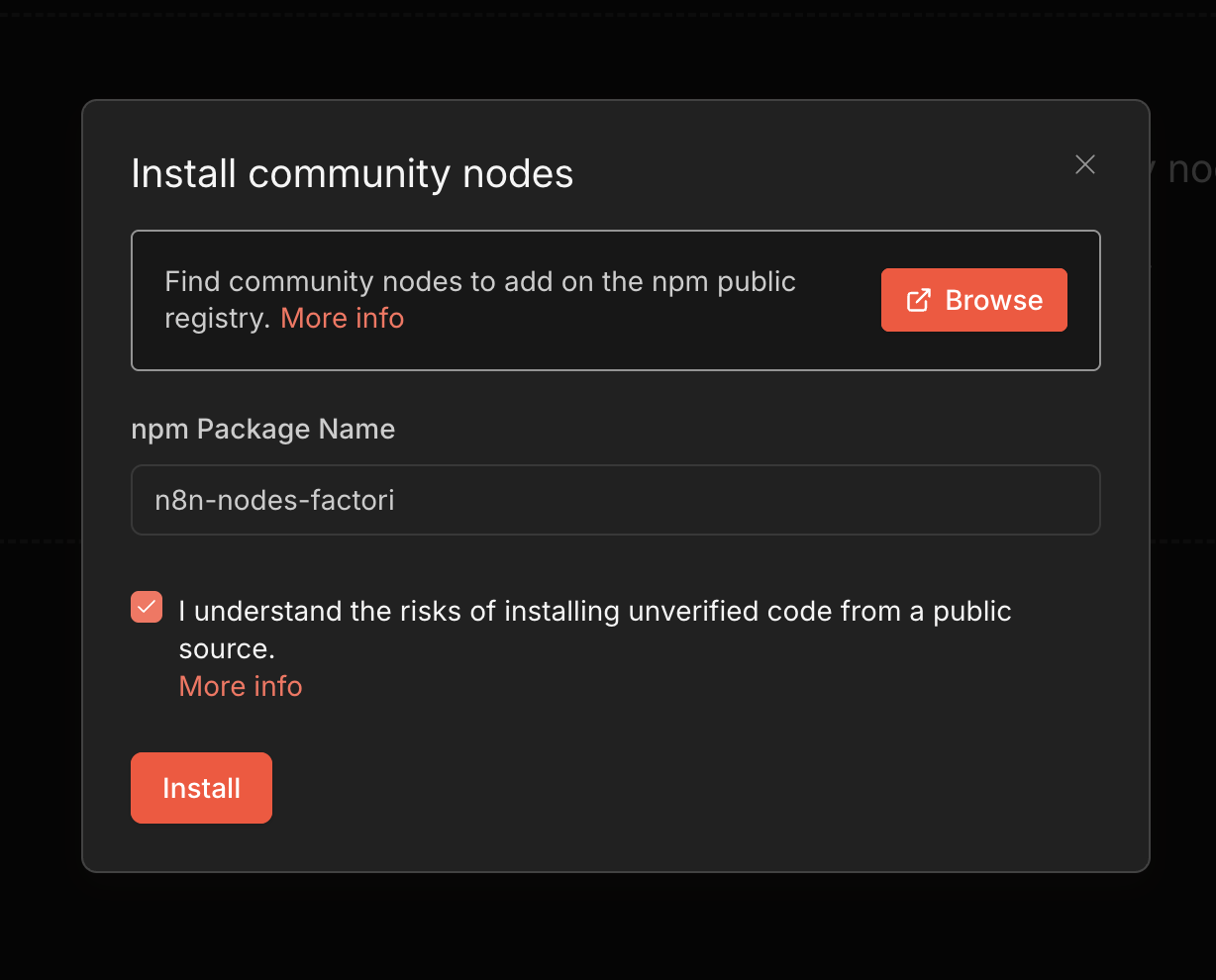
Navigate to your workflow canvas (create a new blank canvas if needed).
-
Click the + Add Node button or press Tab to open the node gallery.
-
Search for Factori in the search bar.
-
The Factori People data enrichment node should appear in the results. Click on it to open the node configuration panel.
Step 4- Generate a Factori API Key
Authentication with the Factori platform is handled via an API key. You must generate this key from the Factori Console
Access the Factori Console:
- Visit the Factori Console at console.factori.io and sign up or log in to your account.
- Navigate to the API Keys section within your account settings.
- Click Generate API Key.
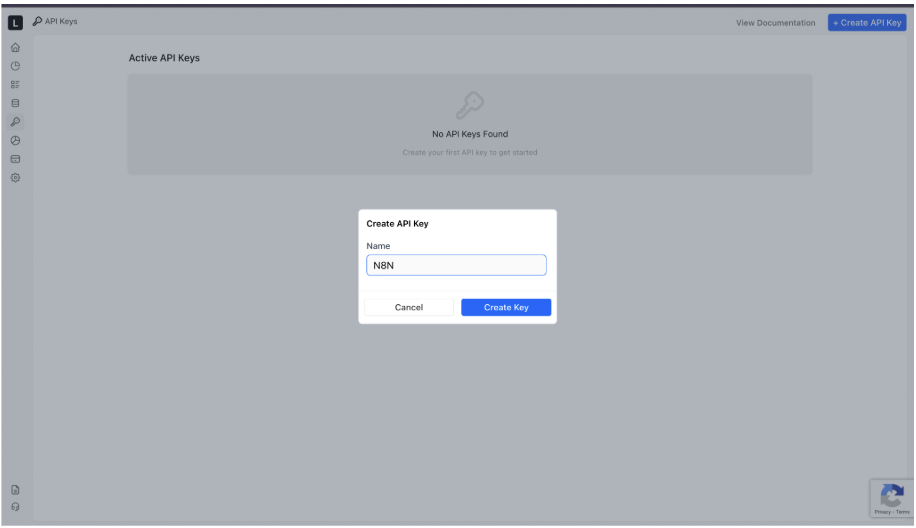
Once the API key has been generated, copy and store the key securely, once pasted into the Factori People data enrichment node in n8n, you will be all set to execute your workflows.
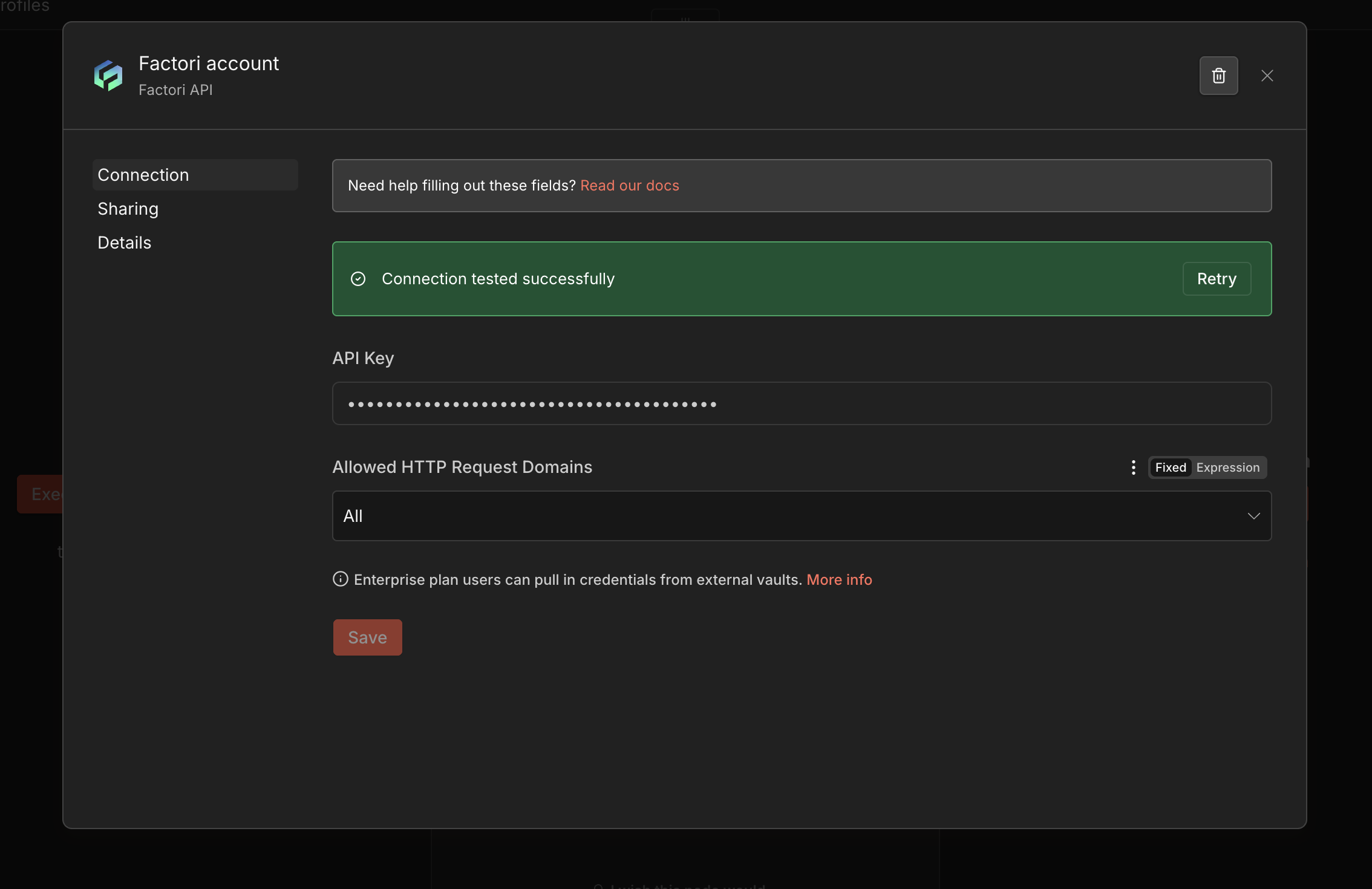
Filter References:
You can apply one or more of the following filters to narrow down results. All filters are optional; however, providing at least one filter is required to execute the node.
| Filter | Description | Example value |
|---|---|---|
| Name | Full or partial name of the person | Jane Smith |
| Email address | Professional or personal email address | [email protected] |
and more...
Enriching People Data:
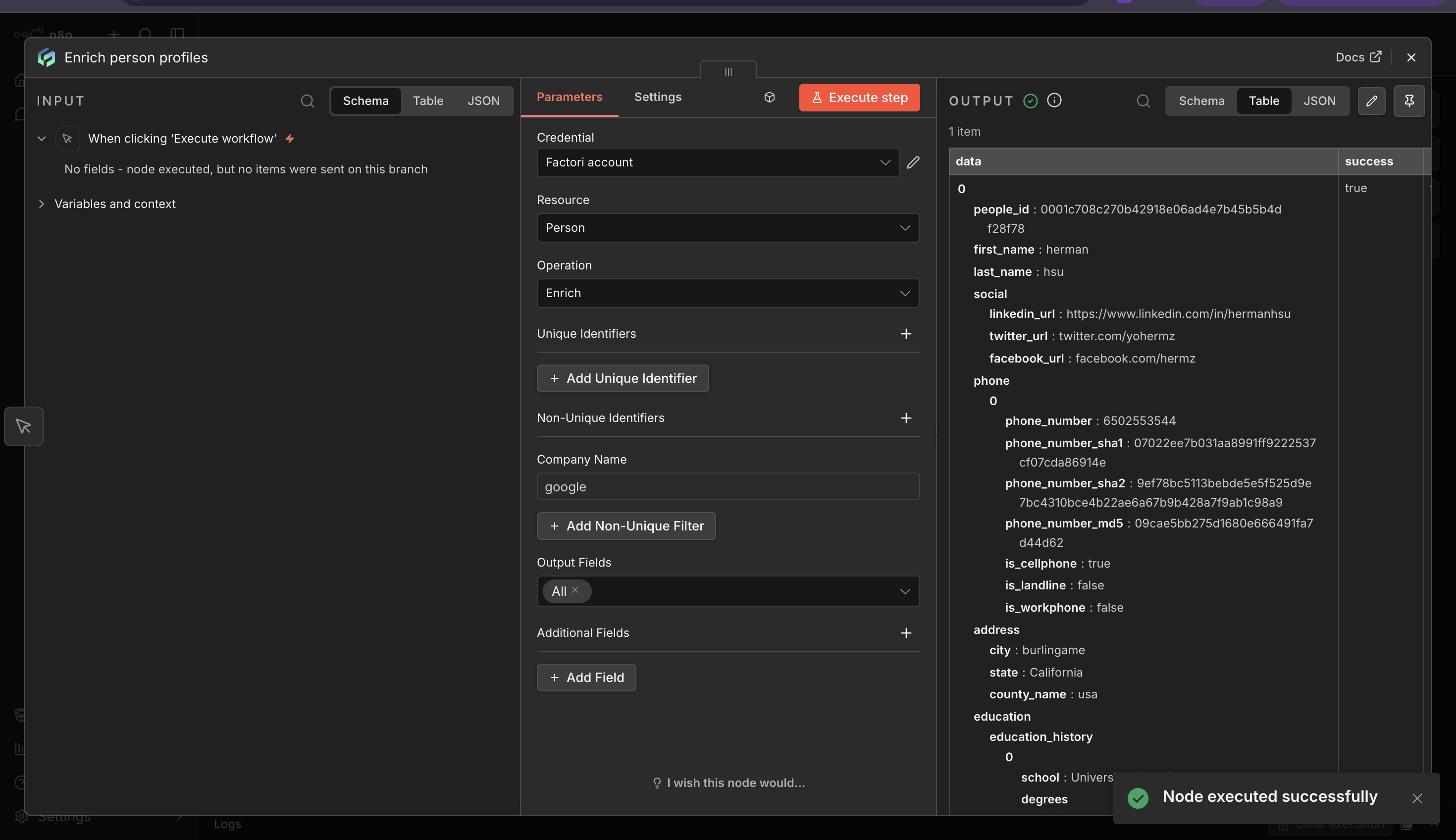
With authentication configured, the Factori People data enrichment node is ready to enrich People data within your n8n workflows.
You can apply one or more filters — Name, Email Address, Company / Organization, Job Title / Role, Location, or LinkedIn URL, to get more refined results as per your business needs.
Once your filters are set, choose Single Output for a targeted one-record result, or Multiple Output to retrieve all matching records, then click on Execute Node.
Review the output in the node's output panel. The enriched data will be available as structured JSON for downstream nodes in the workflow.
Troubleshooting:
- 400: HTTP Error 400 Bad Request status code that means that the request you sent to the website server, often something simple like a request to a search request was somehow incorrect or corrupted and the server couldn't understand it.
-
429: HTTP Error 429 is an HTTP response status code that indicates the client application has surpassed its rate limit, or number of requests they can send in a given period of time.
-
401: HTTP Error 400 Unauthorized is returned when the authentication provided is invalid. See our Authentication Overview for details on authenticating API requests.
-
403: HTTP 403 Forbidden is returned when the authentication provided does not have the proper permissions to access the specific URL.
-
500: HTTP 500 Internal server error is a general error message. It covers unexpected issues that don't fit into existing error codes.
In cases where an API request encounters an error, the Factori API provides informative error messages and corresponding status codes. The error handling section of the documentation explains the possible error scenarios, their meanings, and recommended approaches for error handling and troubleshooting.
Updated 16 days ago