
How to use Places Data
Places provides access to 200M+ verified places worldwide, helping businesses power search, drive personalization, support market analysis, and turn location intelligence into actionable growth opportunities.
It enables you to identify, locate, and interpret any place using reliable, structured, and scalable location data.
Viewing Places
You can view detailed information for each place by clicking into an individual place record.
This allows you to see key attributes such as place name, category, address, geographic coordinates, and other relevant details, helping you quickly narrow down results and focus only on the places relevant to your use case.
Table view – Scan, sort, and compare places at scale using key attributes like name, category, address, and coordinates.
Map view – Visualize geographic distribution to understand spatial patterns, proximity, density, and regional concentration of places.
You can switch between views at any time while refining your filters.
Using Filters
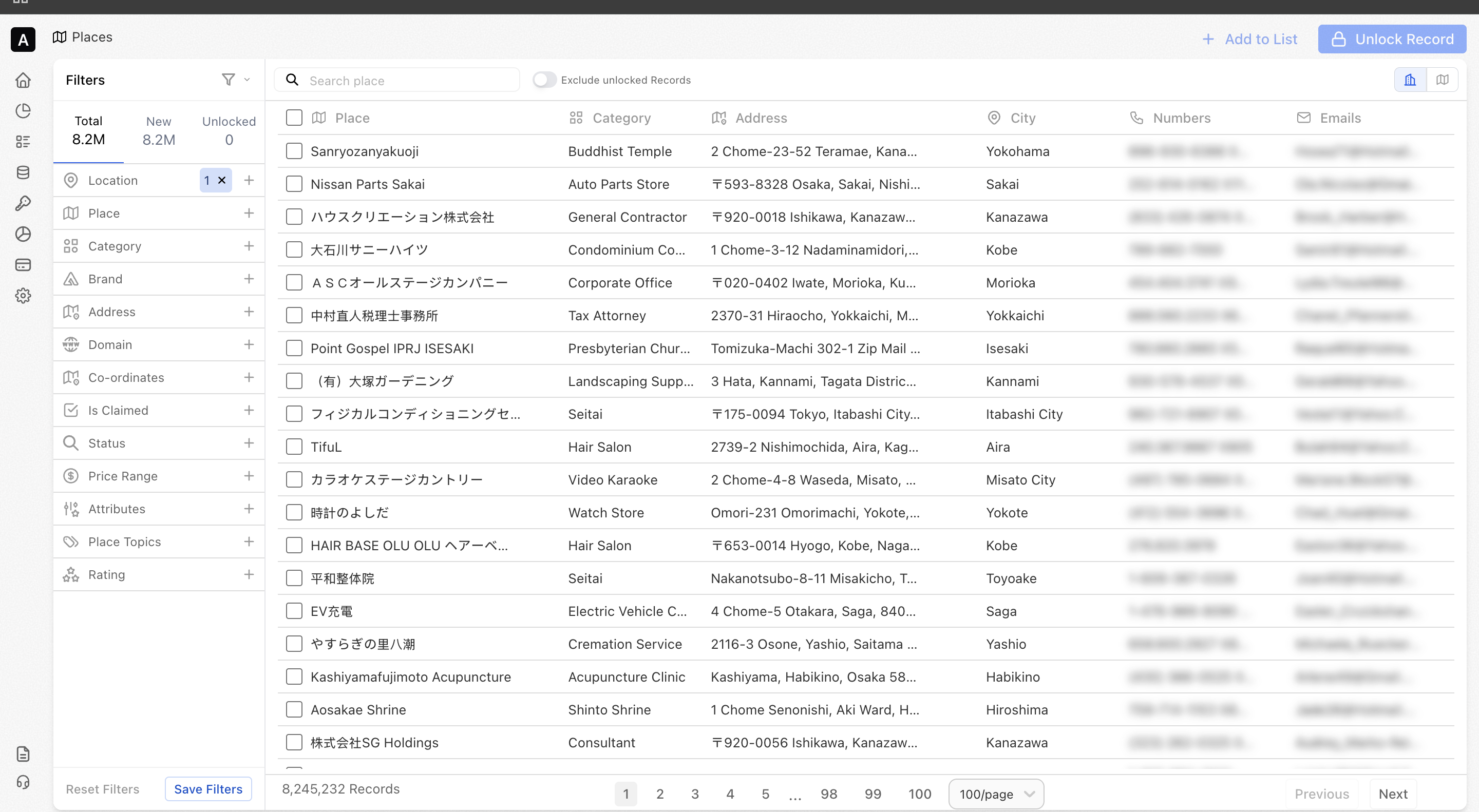
You can filter places data using a wide range of attributes to narrow down locations that match your exact requirements.
- Filter by attributes such as location, category, domain, coordinates, and proximity
- Combine multiple filters to precisely define the places relevant to your use case
- Focus only on the most relevant locations instead of scanning large datasets
💡Example: Save a filter for “Coffee shops in San Francisco” and another for “Coffee shops in Los Angeles,” then compare them to see which city has a higher density of coffee shops.
Unlocking Records
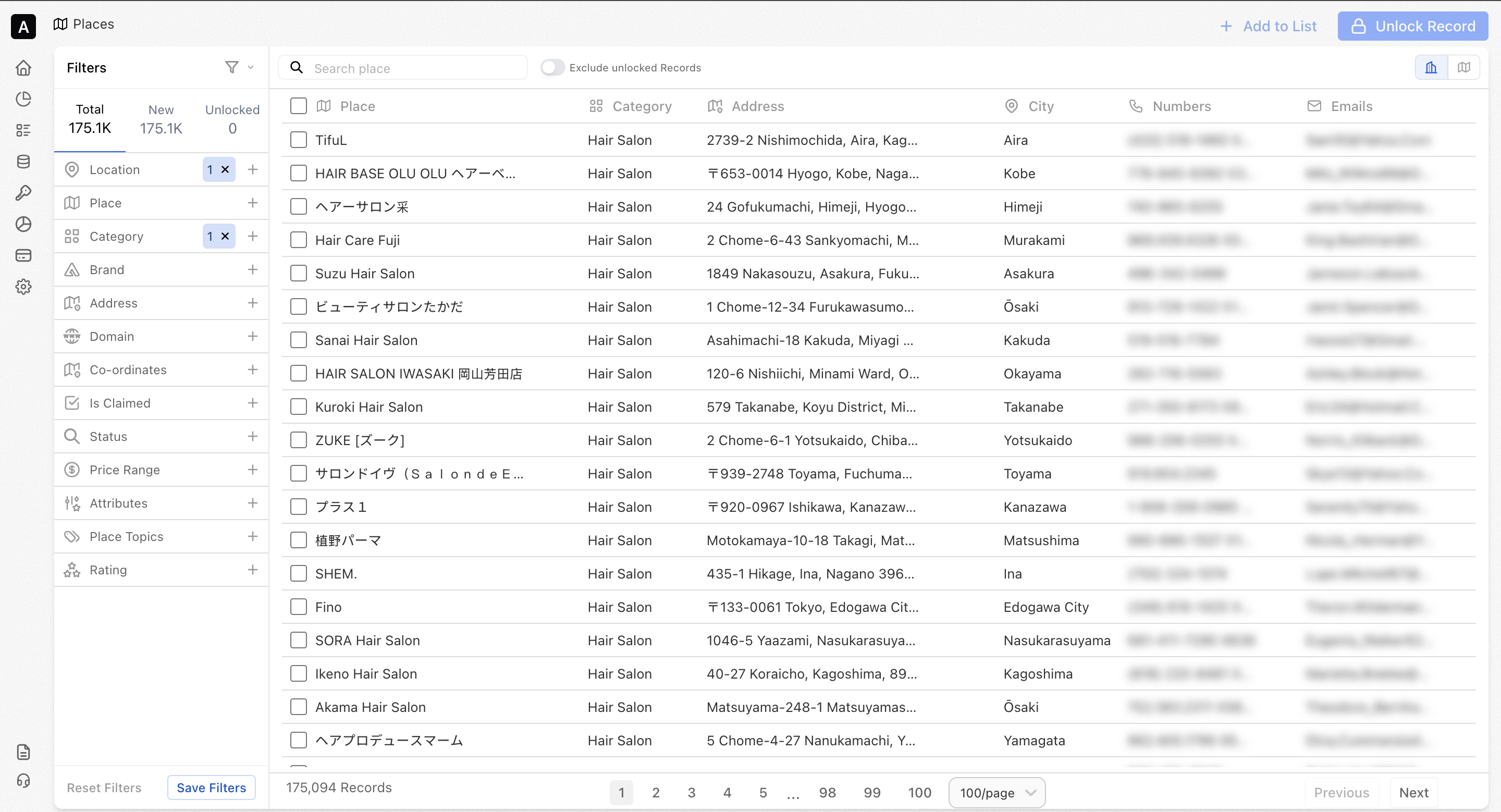
Unlocking places allows you to access detailed, enriched information only for the locations you need, giving you flexibility and cost control.
- Unlock records individually or in bulk
- Export unlocked lists for activation across your tools and workflows
- Use unlocked place data across views, lists, exports, and APIs
💡Example: A retail team can unlock only shortlisted competitor stores in a city to analyze their locations and surrounding coverage, without unlocking every place in the region.
Save Filters
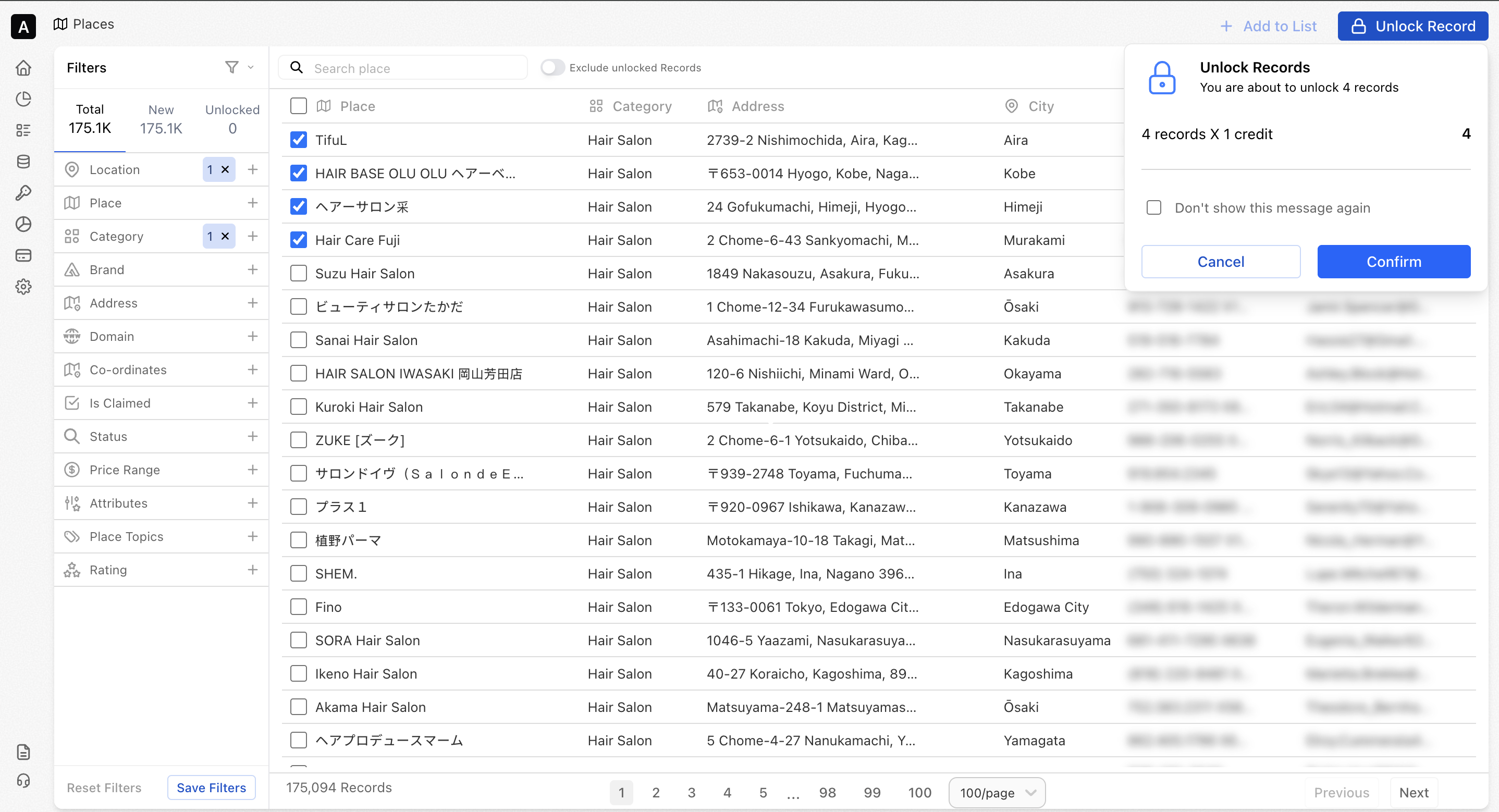
Save your frequently used place filters and reuse them anytime to streamline your workflow. Saving filters helps you work faster by eliminating the need to recreate the same place criteria repeatedly.
It allows you to quickly return to commonly used location sets, compare different groups of places, and maintain consistency across analyses and projects.
- Apply your preferred places filters based on demographics, location, company, lifestyle, and more
- Save filters for future use
- Run saved searches instantly without reapplying filters
- Combine saved filters to compare different locations side by side
💡Example: Save a filter for “Shopping malls in Dubai” and another for “Shopping malls in Abu Dhabi” to compare coverage and density across cities.
Creating Lists
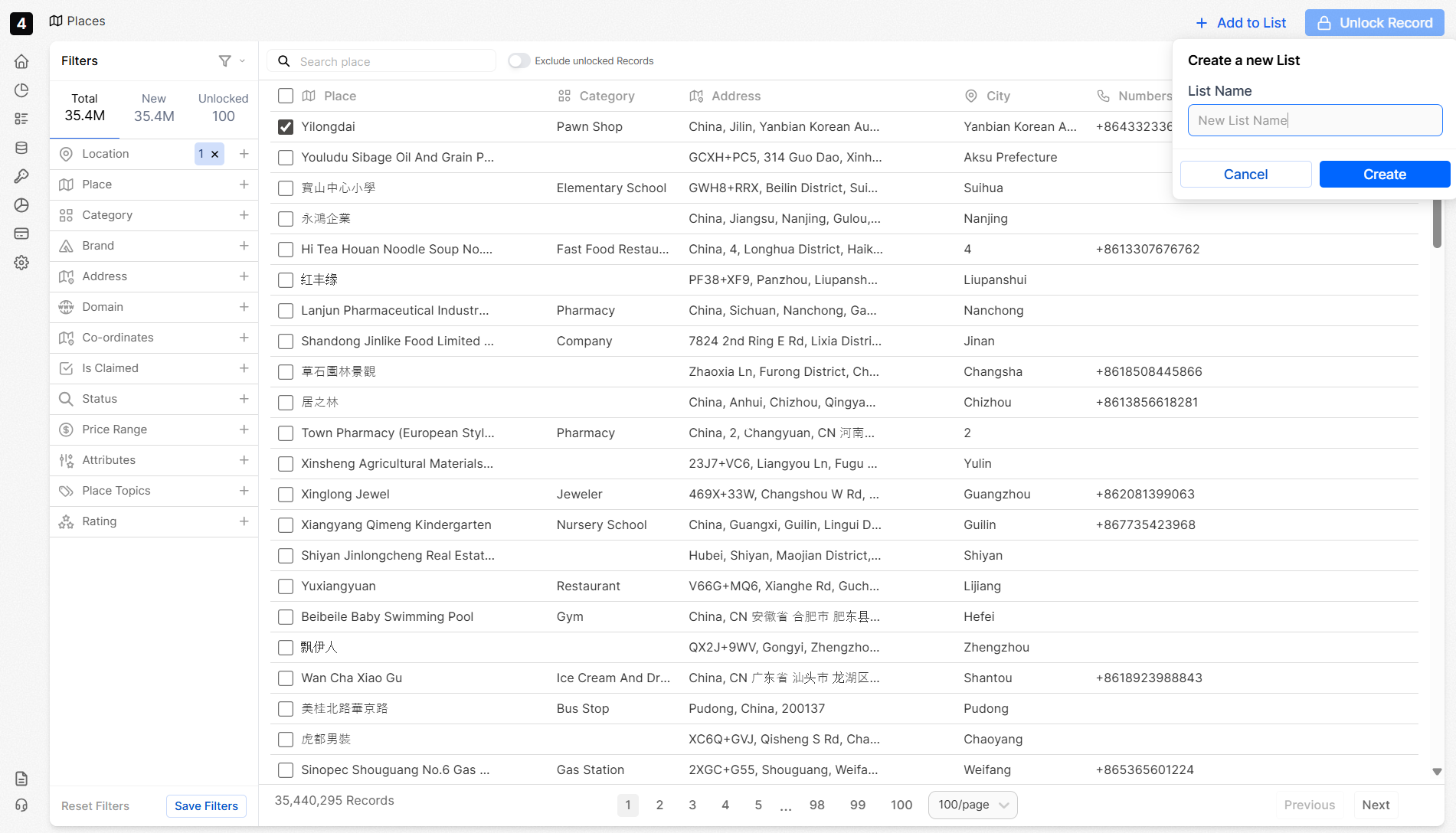
Lists help you organize places into groups for easier analysis and reuse across workflows.
Places data can be segmented by location, category, domain, coordinates, and use case, making it easier to analyze spatial trends, plan campaigns and share insights across teams.
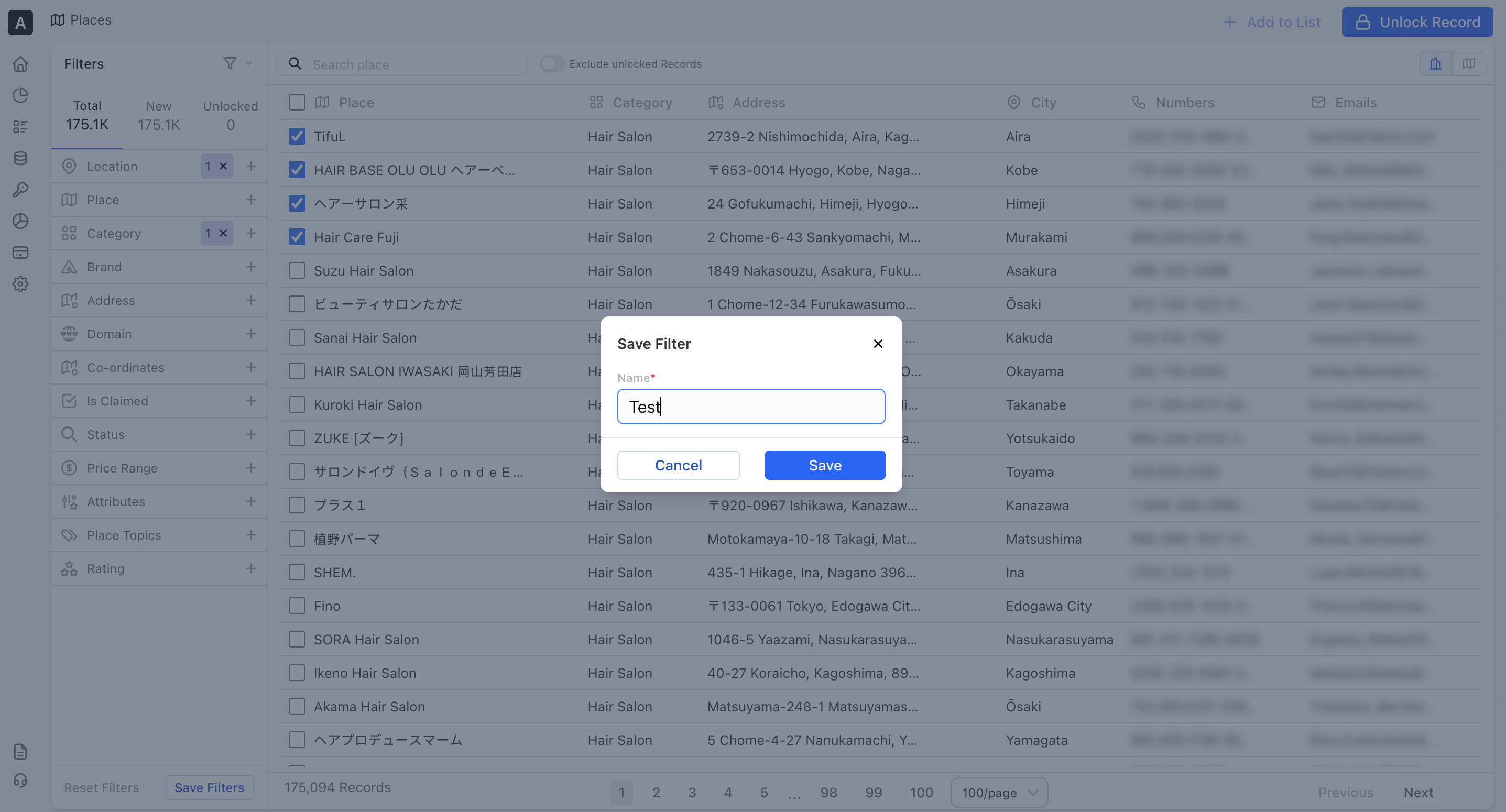
- Add places to a new or existing lis
- View and analyze each list independently
- Export lists to share with your team or activate in downstream systems
💡Example: A marketing team might create a list of “Top malls in Dubai” to plan and optimize their billboard or DOOH placements.
Exporting
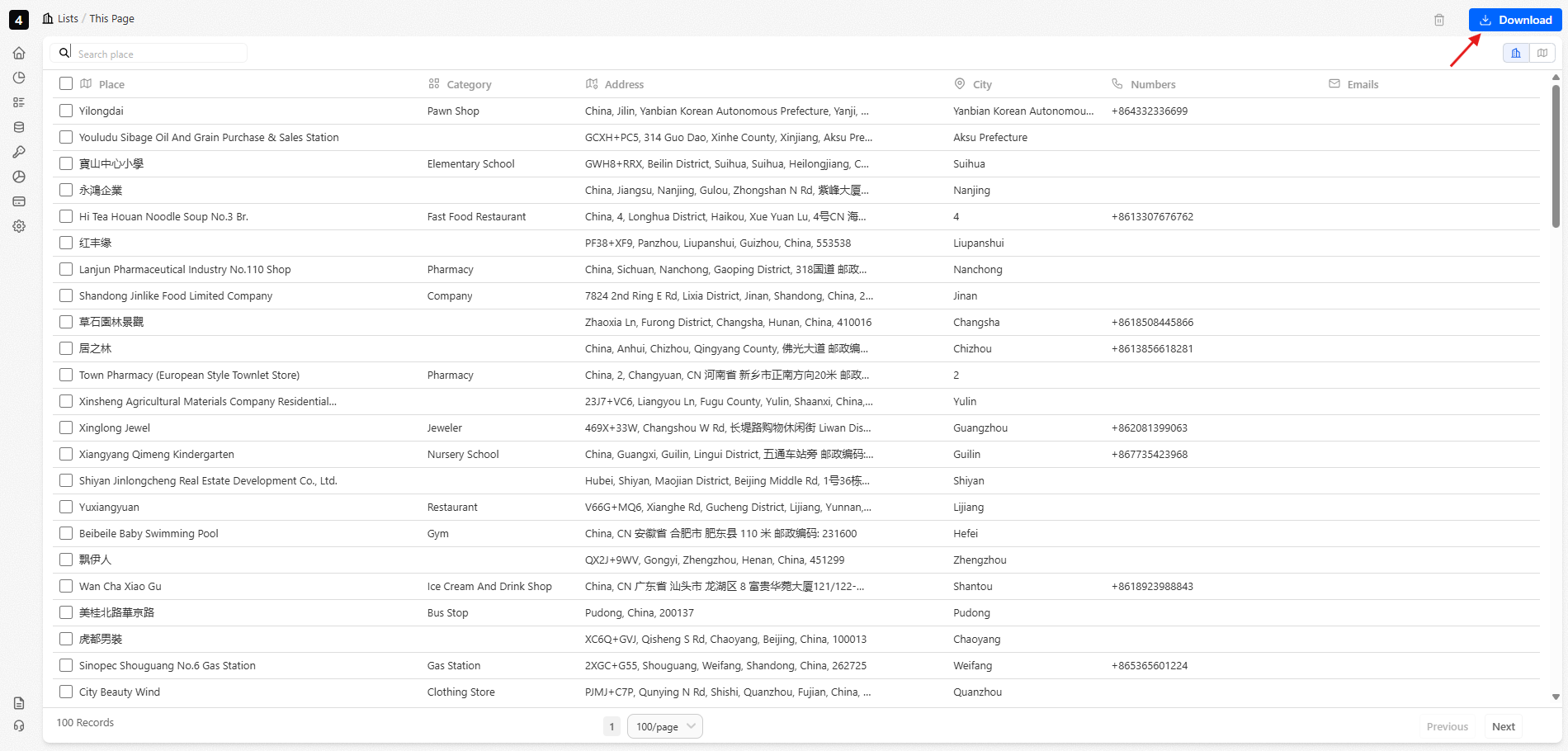
Once your list is ready, you can seamlessly activate it across tools, workflows, and systems.
- Download refreshed lists directly from the platform.
- Access data programmatically using your API key.
Updated 21 days ago