Walkthrough
Everything Audience Studio can do: building with Chat or Filters, reading an audience report, saving audiences, and pushing them to your CRM
Build, size, and activate consumer audiences from real-world behavioral and demographic attributes, then push them straight into your CRM.
Coverage Note:
People/audience data currently covers the United States only. Audiences you build should be US consumer bases.
Audience Studio allows you to:
- Describe an audience in plain English, or build one with structured filters
- See estimated and addressable reach before you commit
- Pull Residents of an area, or Visitors of a specific place
- Get a full data report on any audience: demographics, household, financial, and education
- Save audiences and reuse them across campaigns
- Push a finished audience into HubSpot, Salesforce, or an ad platform
Steps to build an audience with Chat:
From the left-hand menu, open Audience Studio → Explore. The Chat tab is selected by default.
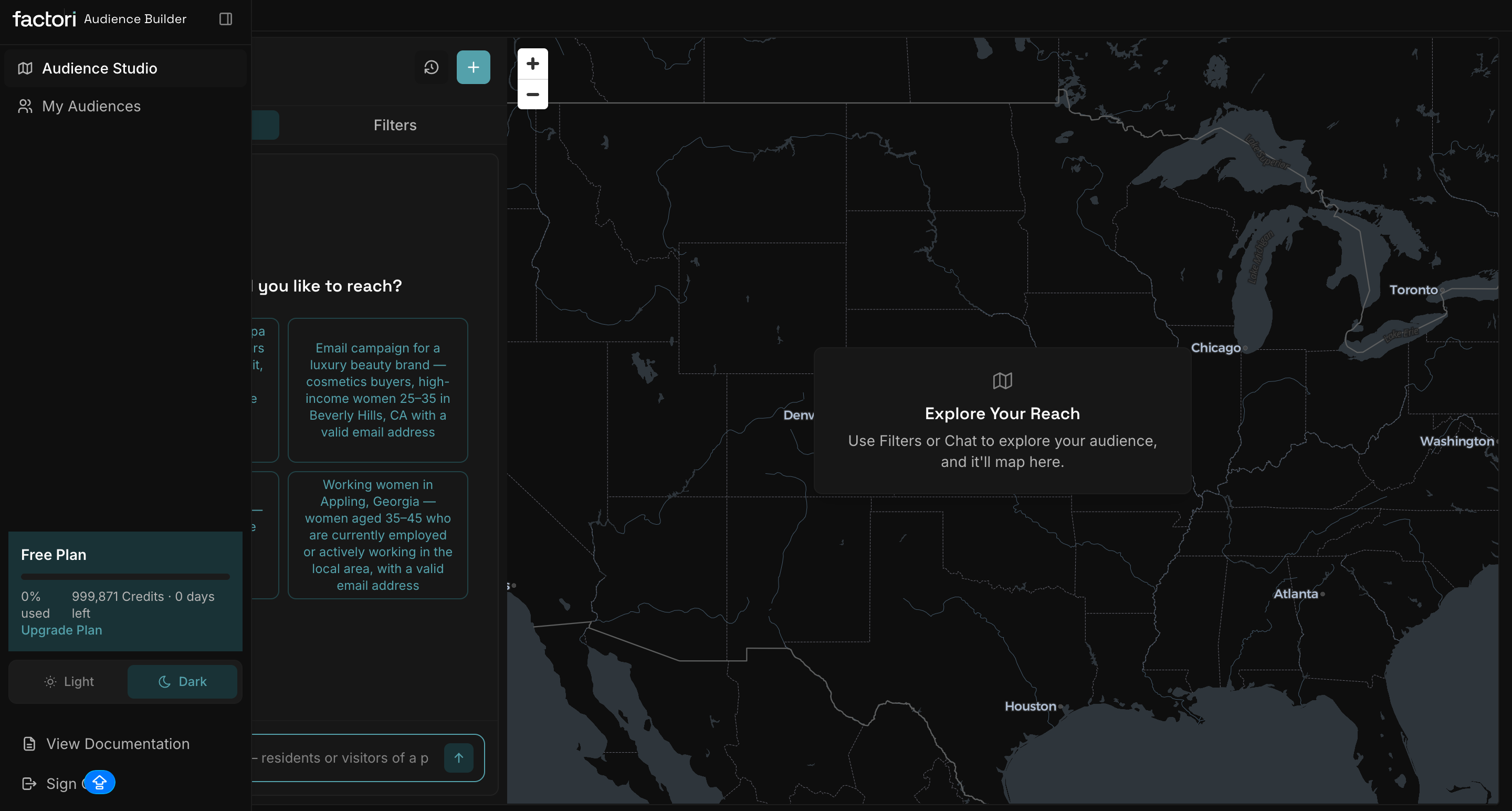
Type your audience into the box at the bottom ("Describe an audience, residents or visitors of a place")
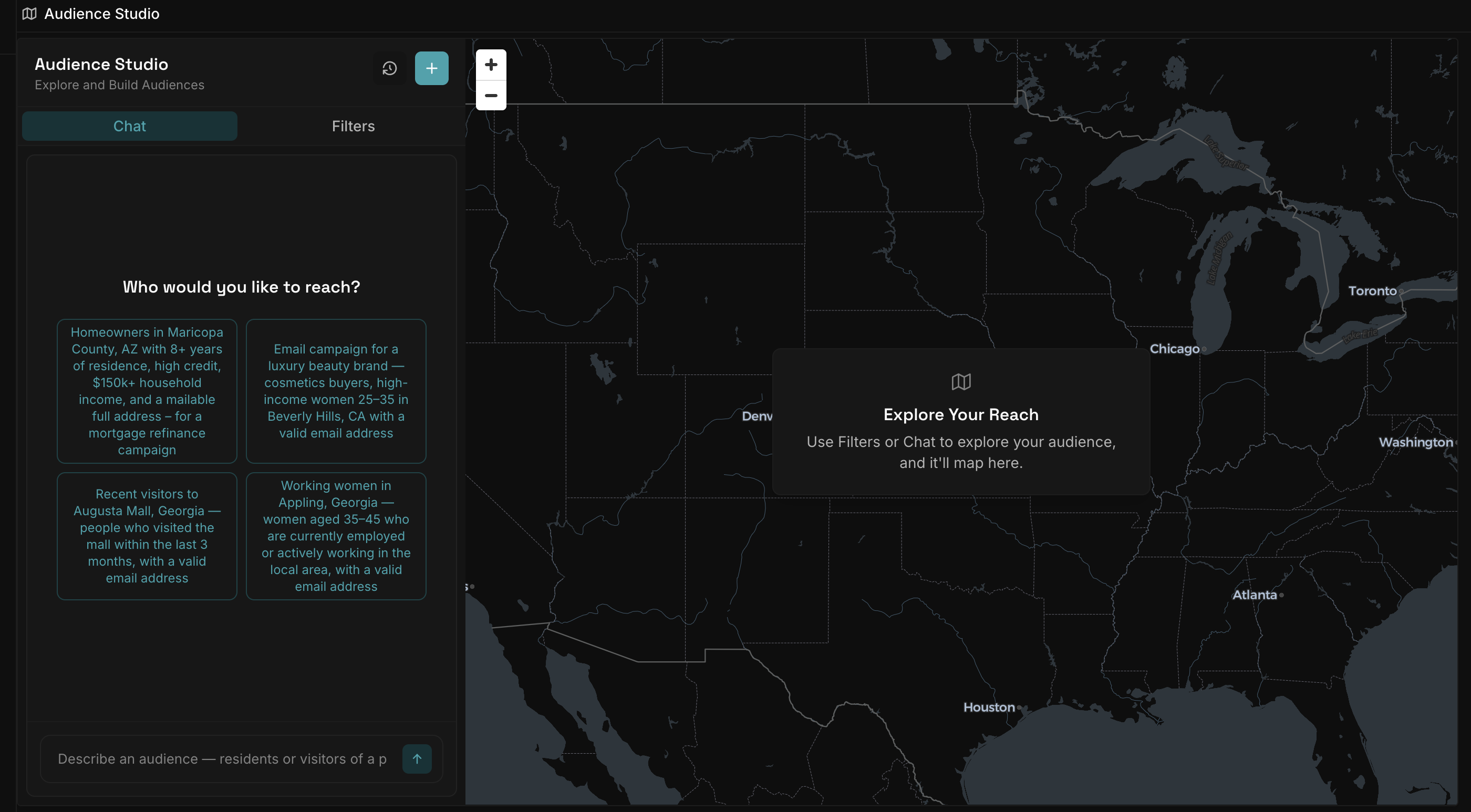
You can describe criteria directly, or describe the campaign and let it infer the criteria:
- Show me frequent visitors to downtown gyms in Denver who also work in Finance department.
- Find executives in New York, high school graduates who work in healthcare.
- Find high-income women aged 25–35 in Beverly Hills who shop for luxury beauty and cosmetics, with valid email addresses.
- Find recent visitors to Augusta Mall, Georgia from the last 3 months, with valid email addresses and phone numbers.
Until you run a query, the map shows Explore Your Reach
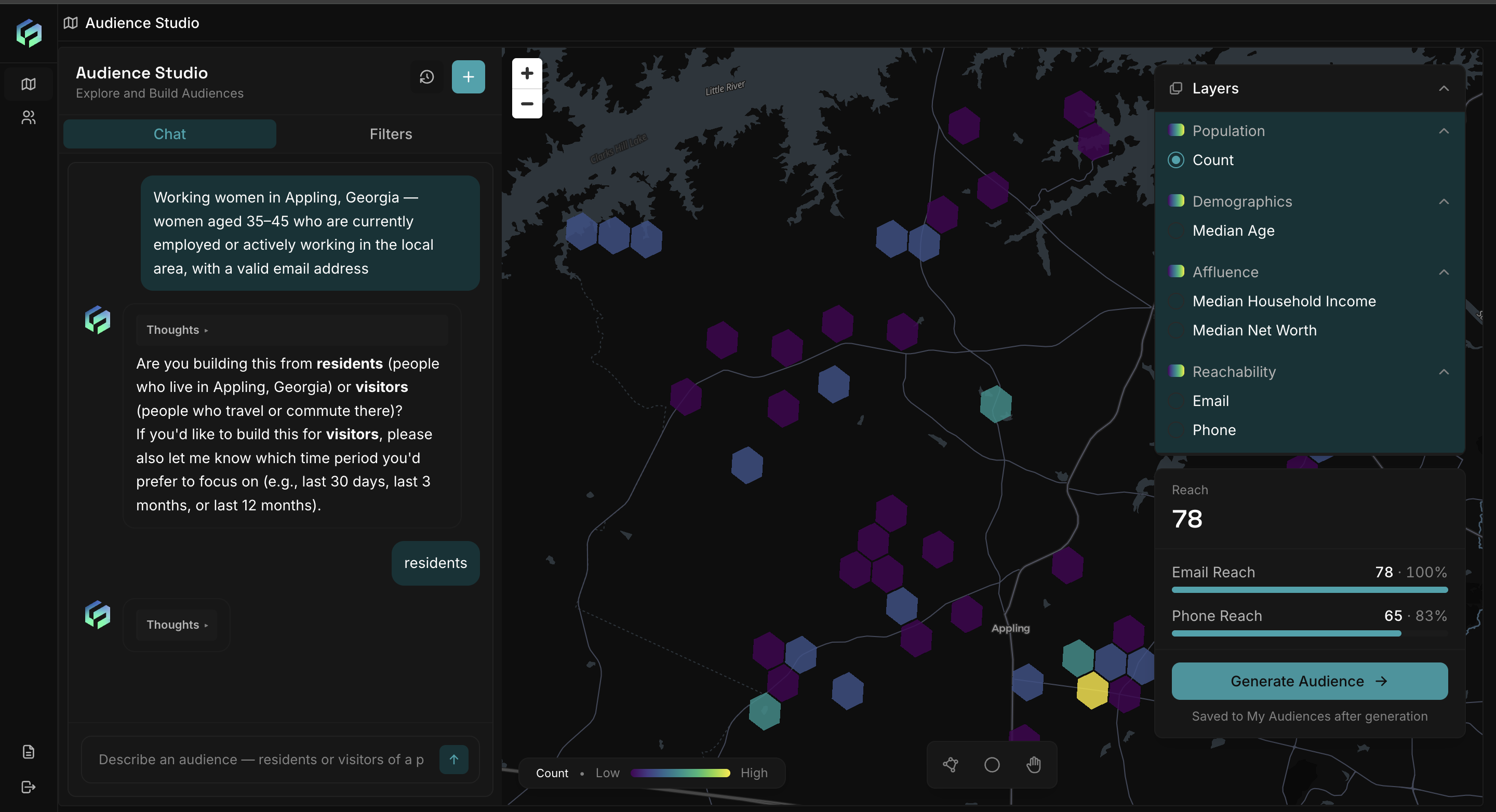
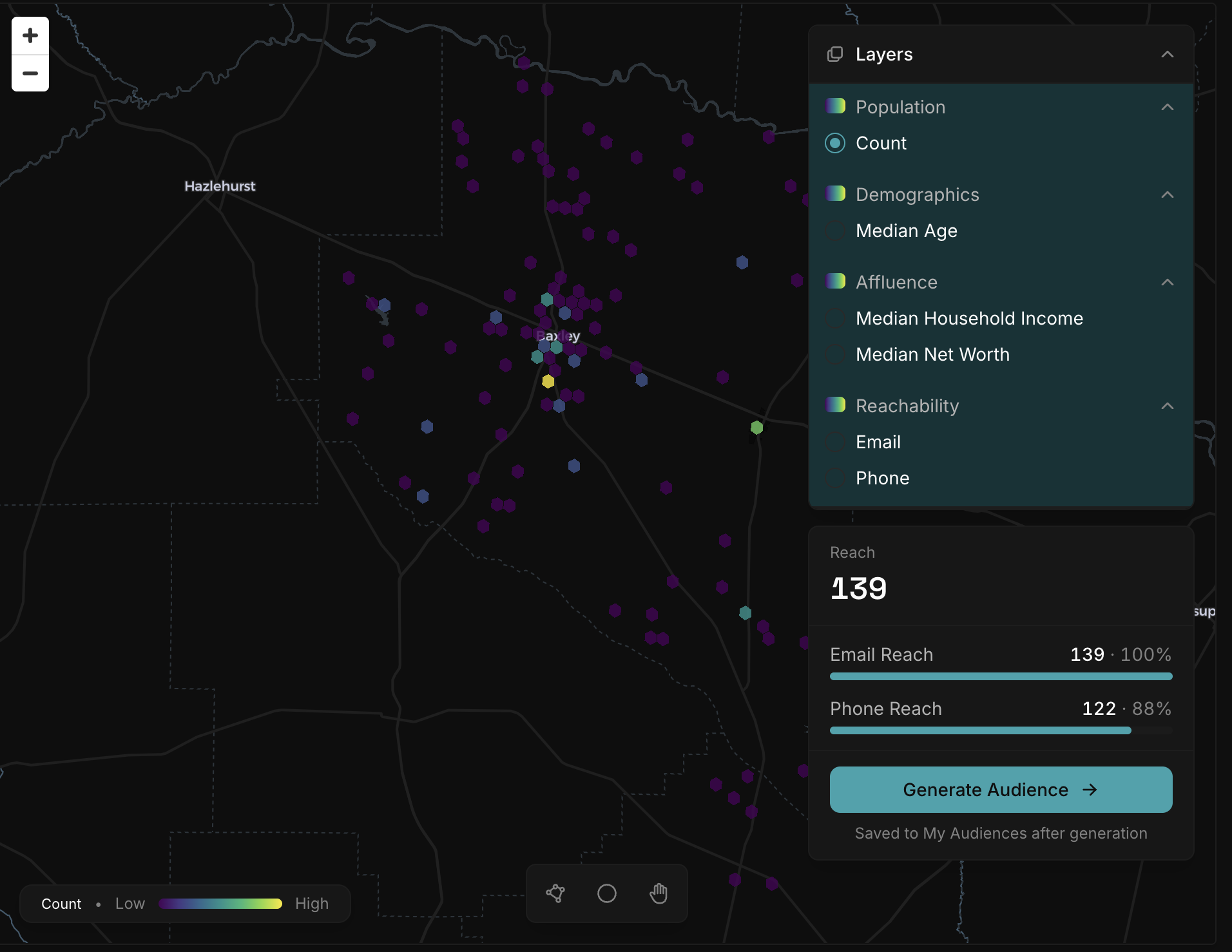
Chat resolves your description into filters and visualizes hex-level audiences on the map, showing audience counts and key indicators such as median age, affluence attributes, and reachability through channels like email and phone.
-
Generate Audience
Once the audience looks right, Click on Generate Audience which automatically saves it to "My Audiences" or push it to a CRM (see Steps to activate an audience below)
Steps to build an audience with Filters:
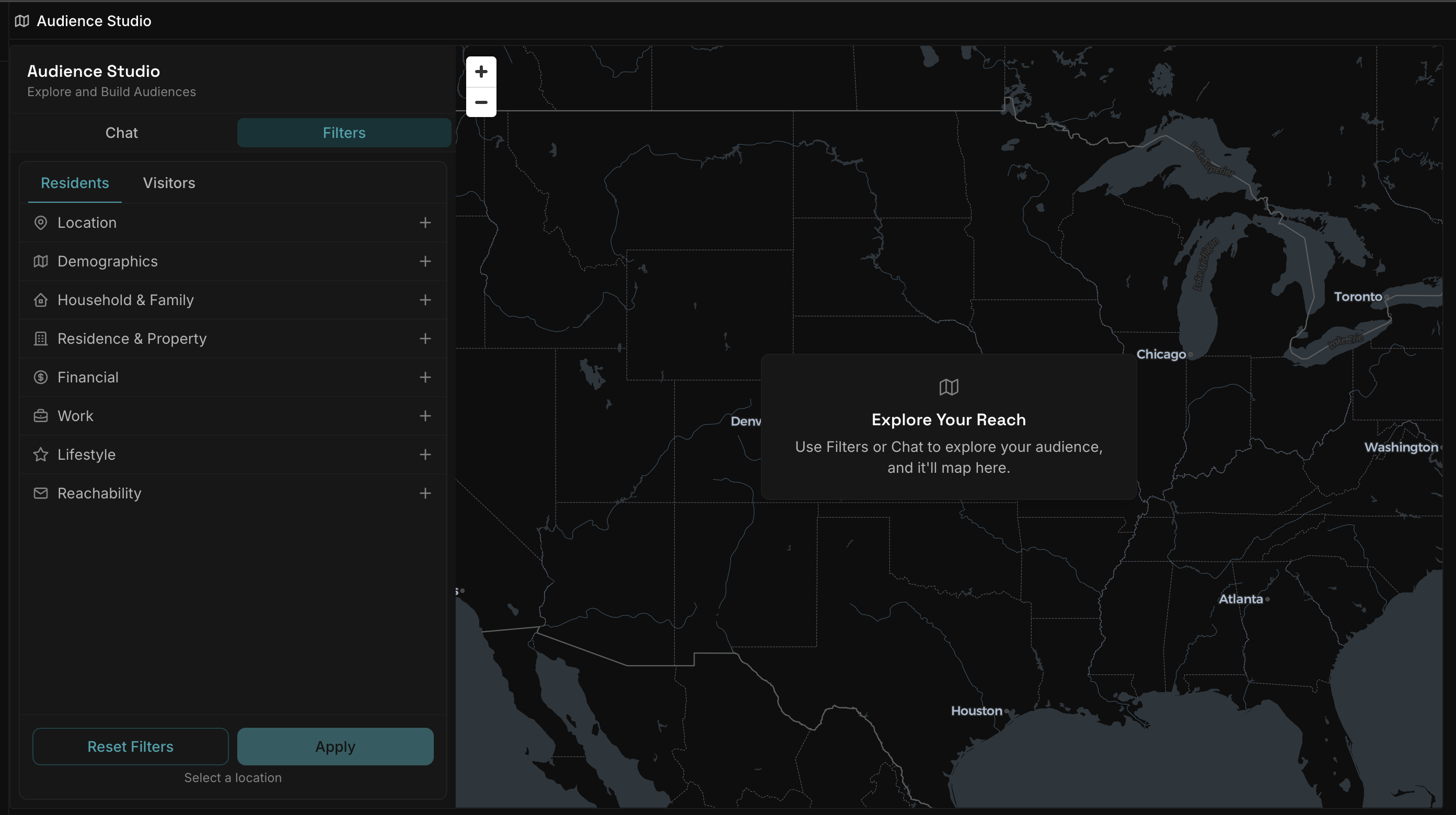
Open the Filters tab. Choose Residents to target people who live in an area, or Visitors to target people who visited a specific place over a time range.
-
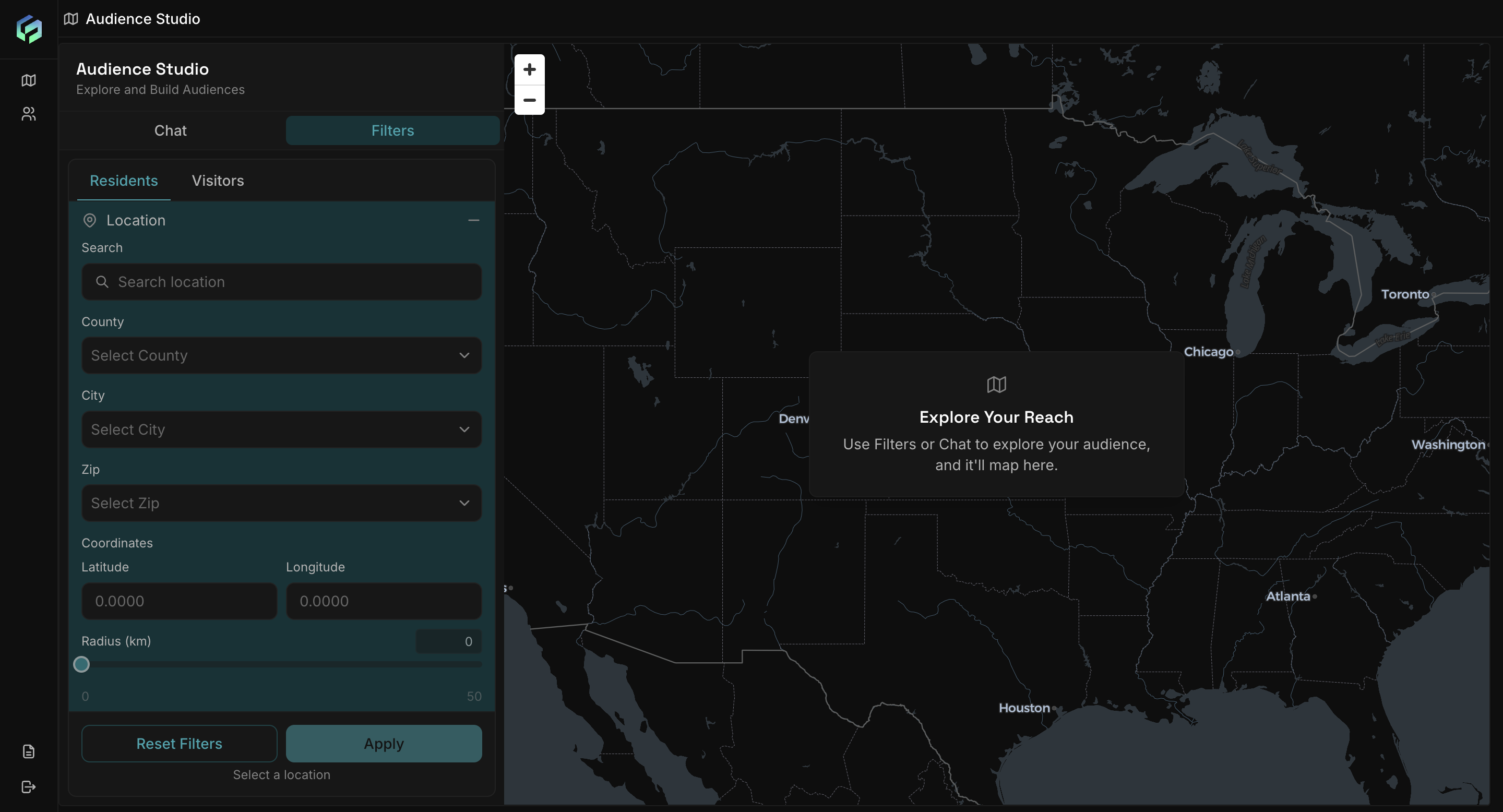
Residents: Set a location by city, county, radius, and more.
-
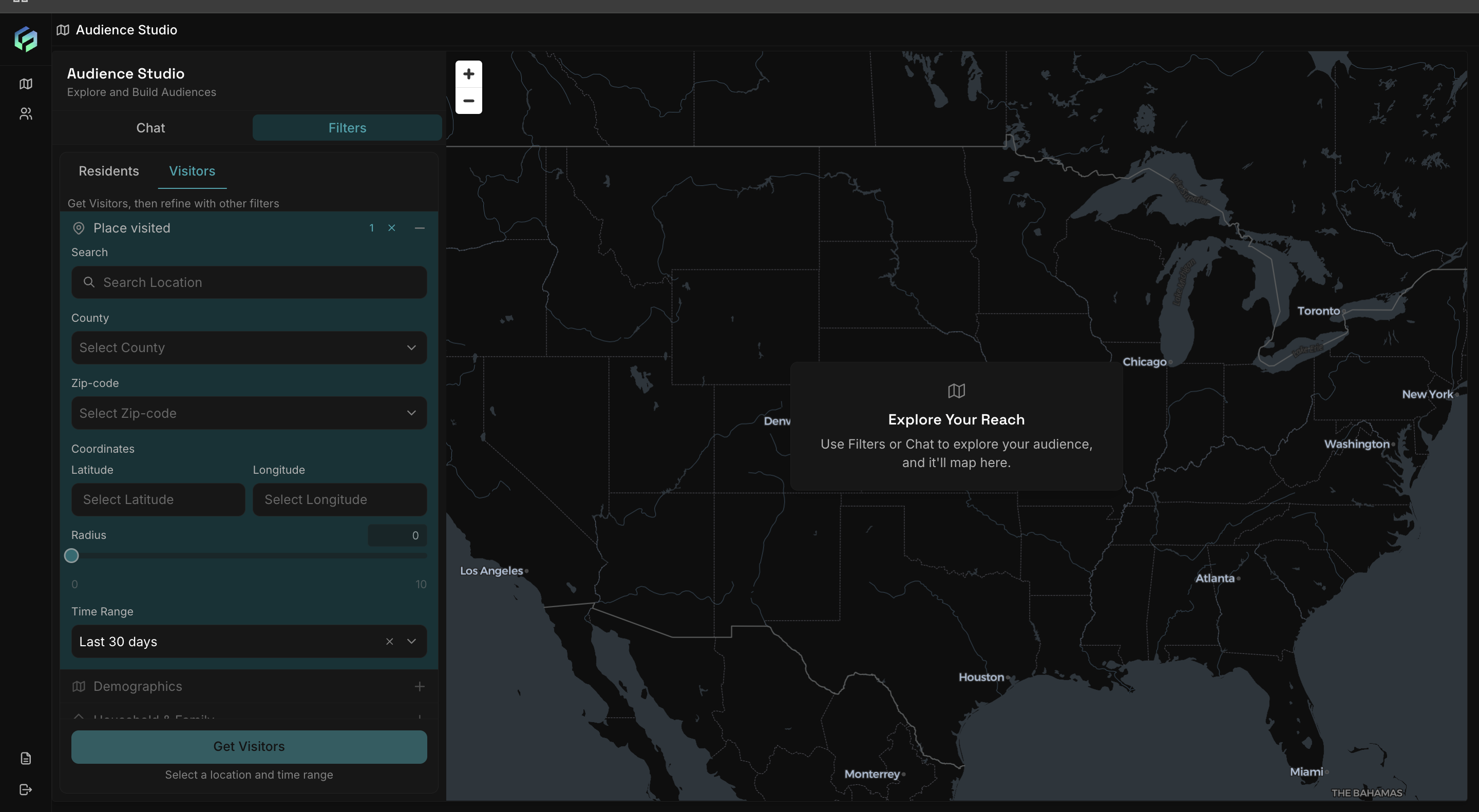
Visitors: Select a place visited and define the time range.
Expand any of the shared categories with the + icon: Demographics, Household & Family, Residence & Property, Financial, Work, Lifestyle, Reachability.
Each category shows a count badge once conditions are active. See Filter reference below for what each covers.
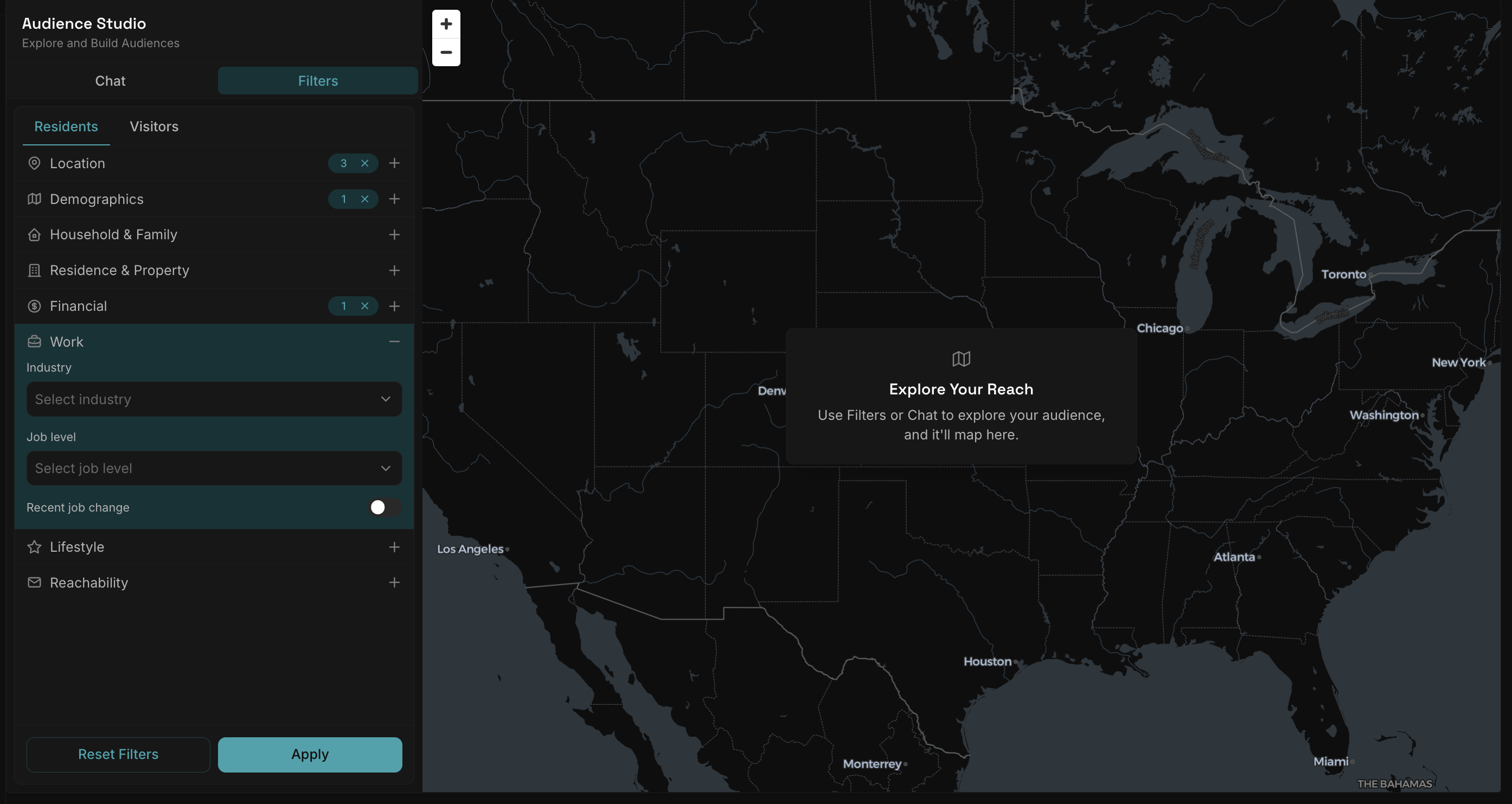
- On Residents, click Apply (or Reset Filters to clear everything and start over)
- On Visitors, click Get Visitors-> this gets the visitors visualised on the map and then they can be narrowed down with other filters
-
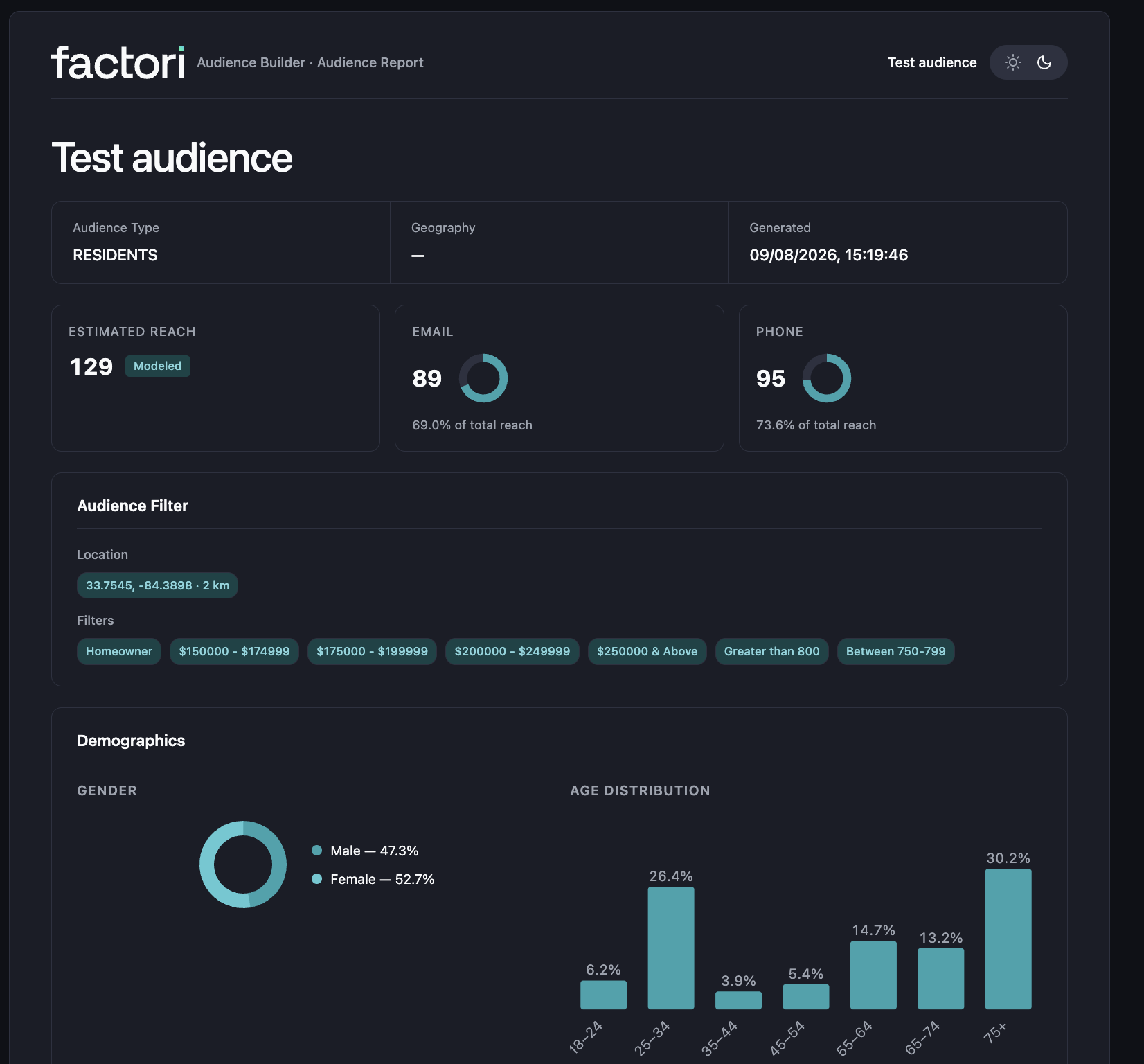
Applied filters appear as criteria tags on the report (for example: Income $100k+ · Homeowner · Age 30-50 · Atlanta), tagged Residents or Visitors. See "What's inside an audience report" below👇🏻 [It gets downloaded as a HTML file]Review the report
What's inside an audience report
This is what makes Audience Studio more than a reach number. Every audience comes back as a full report, not just a count:
- Estimated reach and addressable reach, split out by email match rate and phone match rate, so you know exactly how many of those people you can actually contact
- Audience criteria shown as tags, so anyone looking at the report can see exactly what was targeted (for example: Income $100k+ · Homeowner · Age 30-50 · Atlanta)
- Map or region view of where the audience actually moves or resides.
- Demographics breakdown by gender split, marital status split, full age distribution and more.
- Household & Family breakdown: home ownership split, average length of residence, adult cohort and children cohort by gender and age group.
- Financial breakdown: household income bands, net worth bands, credit score bands, and average home value
- Education breakdown: full educational attainment distribution.
Save and reuse audiences
Every audience you build can be saved to My Audiences:
- View by All, Residents, or Visitors
- Each row shows Name, Created date, and Reach
- Data updated tag appears when the underlying data behind a saved audience has refreshed since creation, so reach numbers stay current without rebuilding
- Use + New Audience to start a new build from this view
Updated 31 minutes ago